Neulpet Live AI connector
Look up your clinical records from Claude and ChatGPT
Connect Neulpet Live (늘펫라이브) to Claude or ChatGPT and ask in plain language about your own consultation notes and your clinic's clients (guardians and their pets). The connector only reads records. It never changes or sends anything.
Read-onlyOverview
What it is
A connector (MCP server) that lets Claude and ChatGPT read your Neulpet Live SOAP notes (진료노트), visit notes, tags and your clinic's client roster to answer your questions. For example, ask “Summarize last week's cases tagged vomiting (구토)” and the AI retrieves only the records it needs from Neulpet Live.
Who can use it
Veterinarians and clinic staff with a Neulpet Live account. Only accounts that passed sign-up review (Korean veterinary license check) can connect, and client (guardian) lookups work only for accounts with confirmed clinic membership. Screens and records are in Korean.
What you need
A Neulpet Live account and a Claude or ChatGPT account that can use connectors (apps). Plan requirements for each service are listed under “How to connect”. Nothing needs to be installed or purchased in Neulpet Live.
How to connect
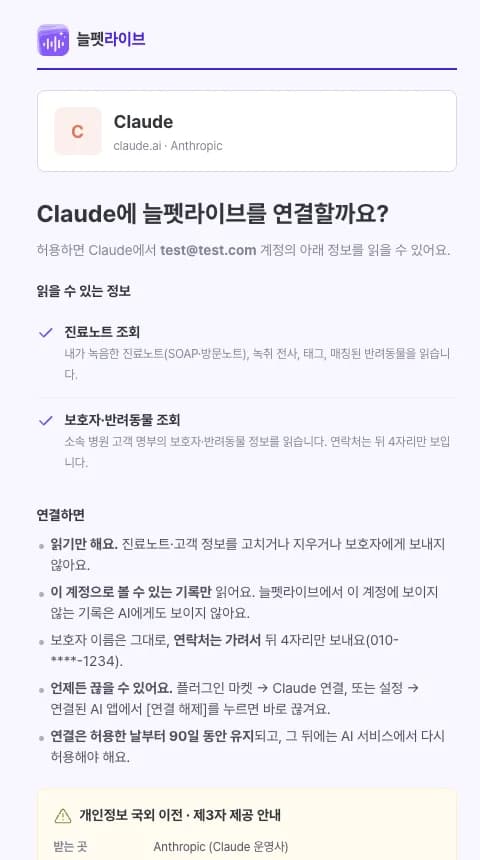
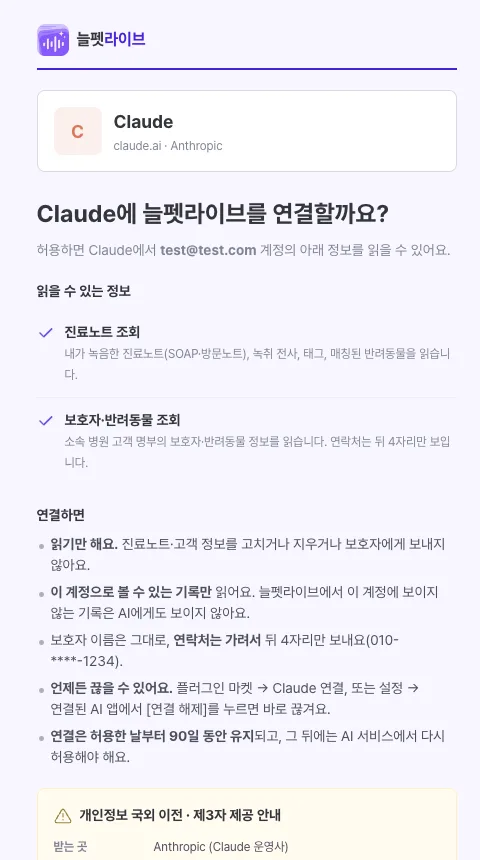
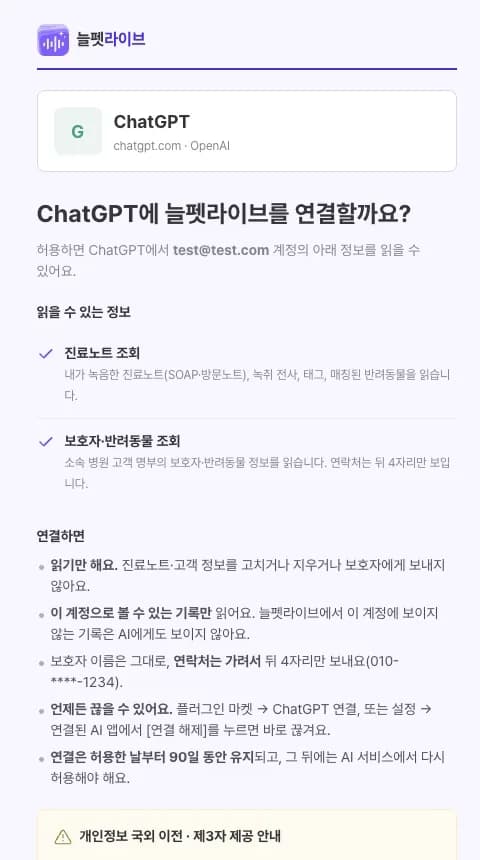
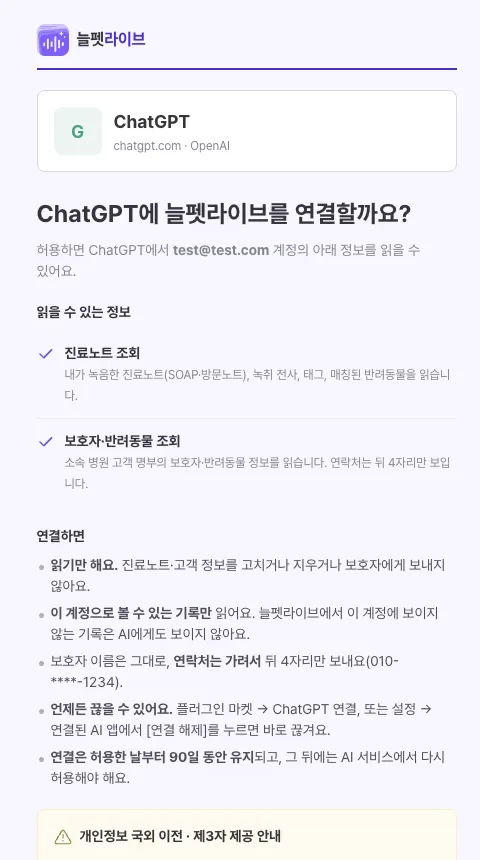
Find Neulpet Live in the AI service and click Connect. A Neulpet Live page opens: sign in, review the requested access and the cross-border transfer notice, then click “Allow and connect” (허용하고 연결). You never give your Neulpet Live password to the AI service.
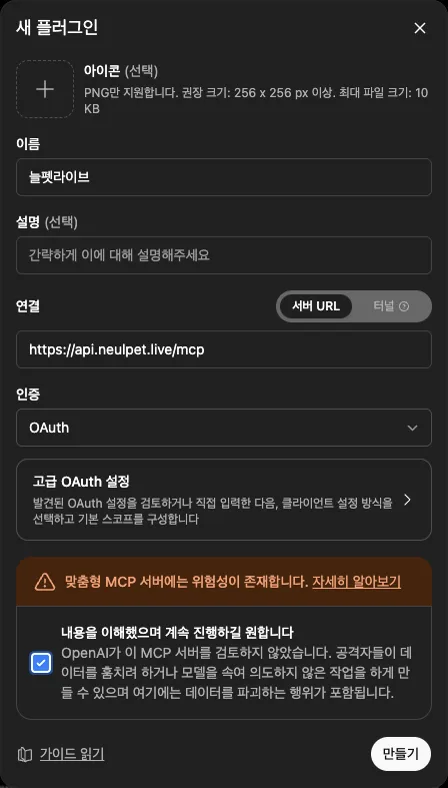
https://api.neulpet.live/mcpOnly needed when adding by URL. Keep OAuth for authentication and leave Client ID and Secret empty.
Claude · Anthropic
Plans Works on Claude Free, Pro, Max, Team and Enterprise. Connect once on the web or desktop app and it also works in the mobile app.
From the directoryConnect from the Claude directory
The simplest way.
- Search for “Neulpet” at claude.ai/directory, or in Settings → Connectors → Browse.

- Open Neulpet Live (늘펫라이브) and click Connect to Claude.

- Sign in to Neulpet Live, review the access and click “Allow and connect” (허용하고 연결).
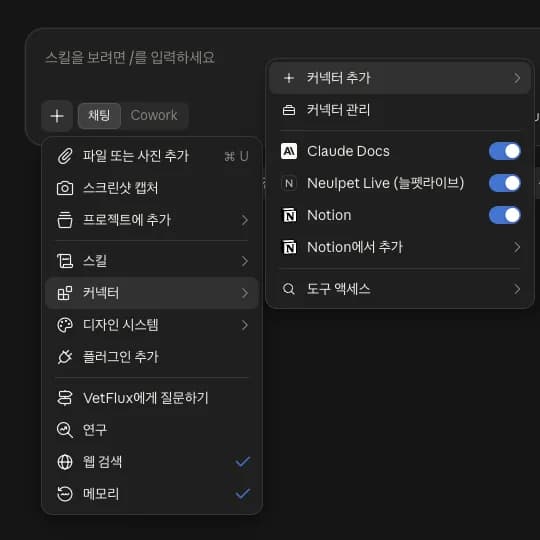
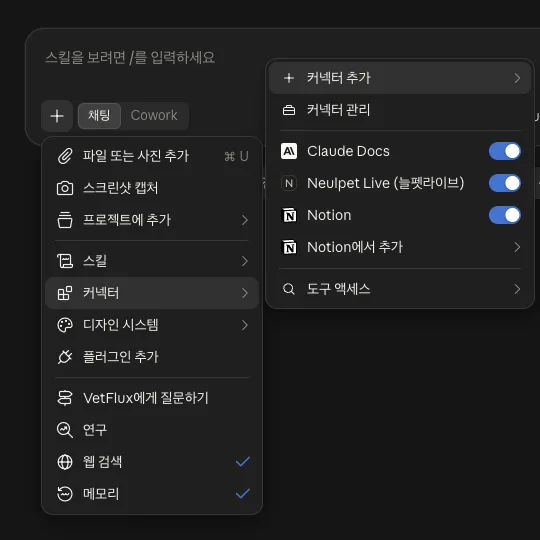
- In a chat, check that Neulpet Live is turned on under + → Connectors, then ask your question.


Add by URLAdd as a custom connector
If you cannot use the directory, add it by URL.
- Open Settings → Connectors and click Add.
- Name it Neulpet Live, enter the MCP server URL above and click Continue.
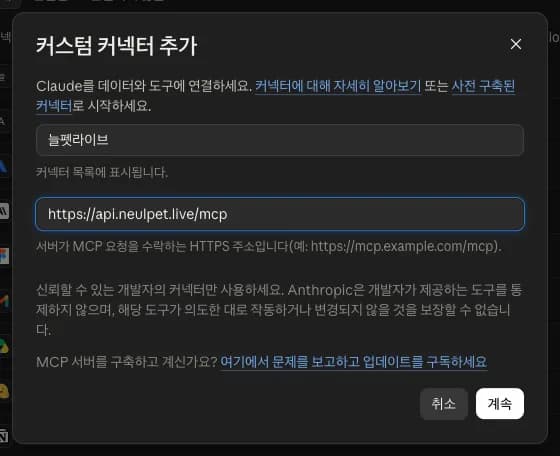
- Click Connect on the new connector, sign in and click “Allow and connect”.
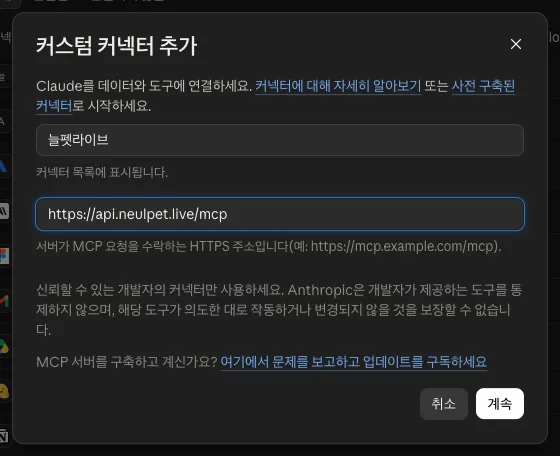
On Team and Enterprise plans, an organization Owner must first click Connect for team on the directory listing before members can see it.
ChatGPT · OpenAI
Plans The app directory works on most plans. Developer mode is available on the web (chatgpt.com) for Plus, Pro, Business and Enterprise.
From the directoryConnect from the app directory
The easiest way. Works on the web and in the mobile app.
- In ChatGPT, open Plugins and search for “Neulpet”.
- Select Neulpet Live (늘펫라이브) and click Connect.
- Sign in to Neulpet Live and click “Allow and connect”.
Add by URLAdd with developer mode
Only needed when the app directory is not available in your workspace. Use chatgpt.com on the web.
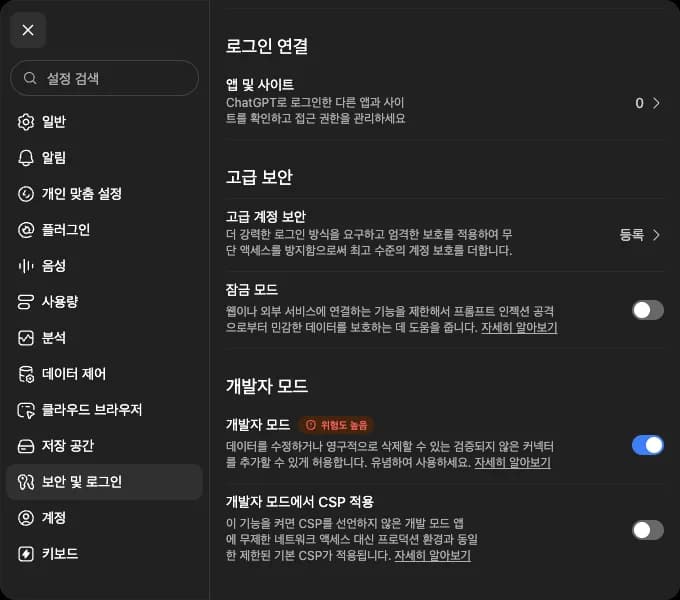
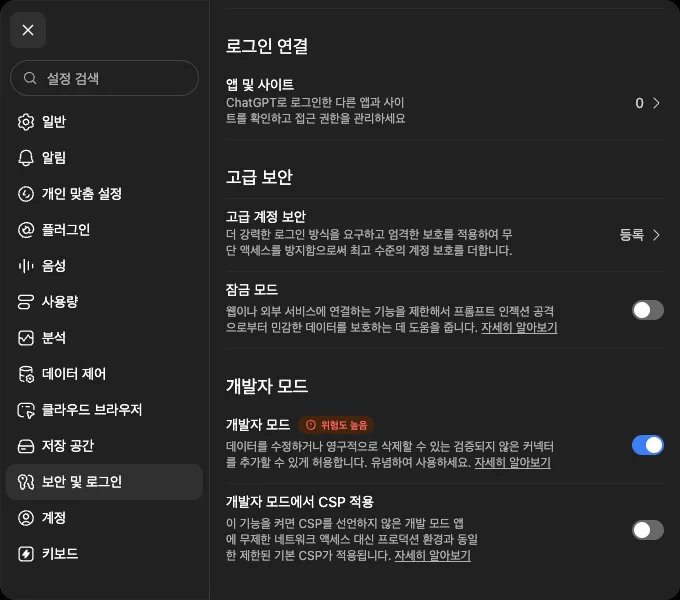
- Open Settings → Security and login and turn on Developer mode.
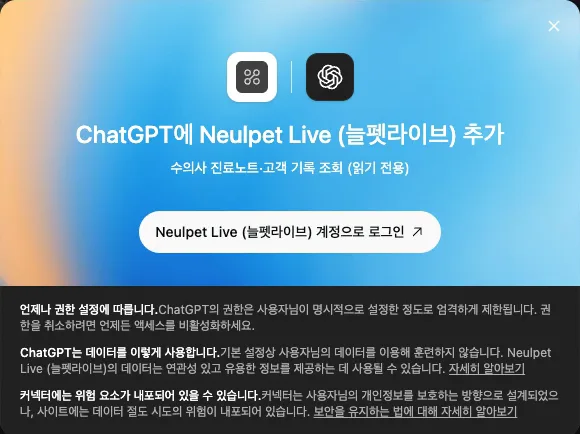
- On the Plugins page, click + in the top right. Name it Neulpet Live and enter the MCP server URL above. Keep OAuth for authentication, tick the acknowledgement and click Create.
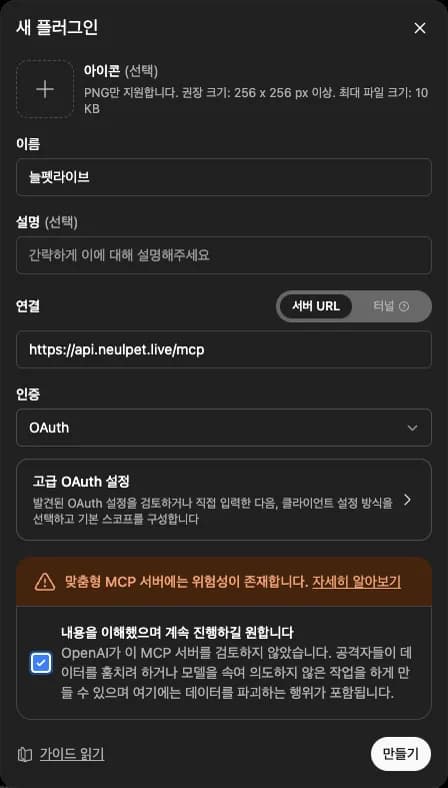
- Click Sign in with Neulpet Live (늘펫라이브).
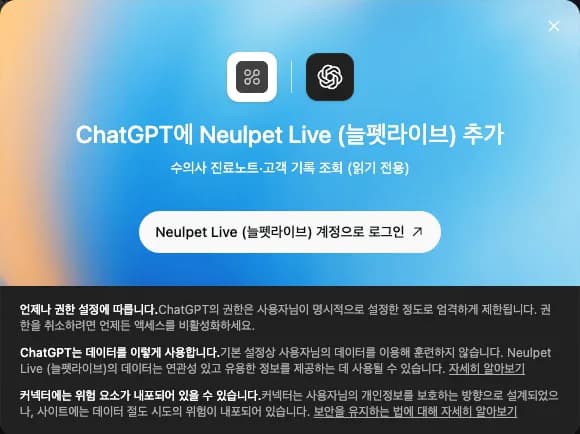
- Sign in to Neulpet Live, review the access and click “Allow and connect”.
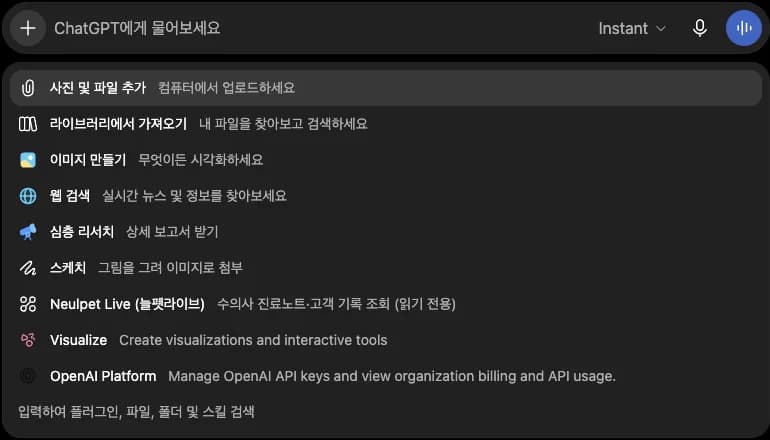
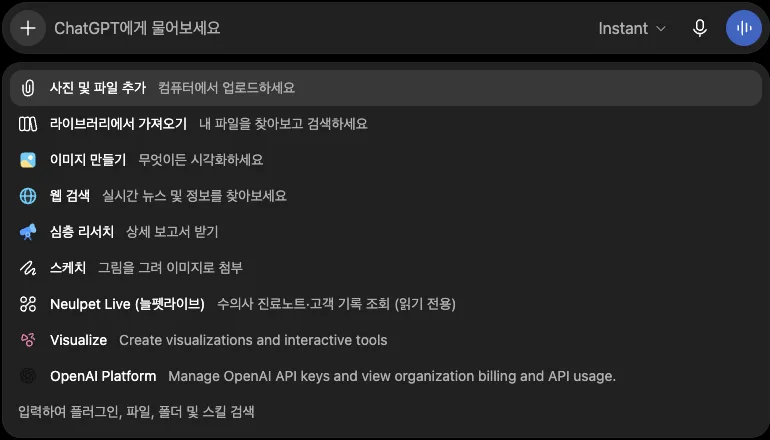
- In a new chat, click + and pick Neulpet Live (늘펫라이브), then ask your question.
In Business and Enterprise workspaces, an admin must allow developer mode or the Neulpet Live app before members can see it.
What the connector can do
The AI chooses from the tools below to answer you. Results are limited to records you can already see in the Neulpet Live web app.
Every tool is read-only. There are no tools to create, edit or delete records, or to message guardians.
searchSearch notes and clientsFinds your notes and clinic clients by guardian or pet name, symptom tag or note title, and returns titles and links.
Required permission: notes:read · customers:read
fetchRead a recordReads the full text of one note or client returned by search.
Required permission: notes:read · customers:read
list_notesList notesLists your notes, most recent recording first, filtered by keyword, tag or whether a pet is matched (up to 20 per page).
Required permission: notes:read
get_noteNote detailsShows one note's SOAP sections (chief complaint, S, O, A, P), visit note, tags and matched pet. The consultation transcript is included only when requested (up to 15,000 characters).
Required permission: notes:read
search_customersSearch clientsSearches the clinic's client roster by guardian name, partial phone number or pet name. Phone numbers are shown with only the last 4 digits.
Required permission: customers:read
get_customerClient detailsShows one guardian's pets and last visit date, plus your recent notes for those pets.
Required permission: customers:read
get_my_hospitalMy clinicShows your clinic's name and address and your role and membership status.
Required permission: Any connection
What is shared and how it is protected
You choose the permissions
On the Neulpet Live consent screen you review and allow “notes:read” (진료노트 조회) and “customers:read” (고객 조회). Guardian names and phone numbers are sent to the AI only if you allow customers:read.
Phone numbers are always masked
Guardian phone numbers are sent with only the last 4 digits (e.g. 010-****-1234). Searching clients by a full phone number is blocked.
Only what is needed
Only the results needed to answer your question are sent to the AI service (Anthropic for Claude, OpenAI for ChatGPT — United States) over an encrypted connection (HTTPS). Transcripts are sent only on request. After that, retention follows the AI service's policy and your chat history settings.
Connections last up to 90 days
Your consent stays valid for up to 90 days; after that you allow the connection again. Resetting your password or deleting your account disconnects all AI apps.
Access is logged
For security and abuse prevention, each call is logged with the time, tool, record ids, IP address and User-Agent. We never store your chat content or search text — only the length of the search text.
Disconnect anytime
In the Neulpet Live web app, open the account menu → Connected AI apps (연결된 AI 앱), or Market (마켓) → Claude / ChatGPT connection, and disconnect. It takes effect immediately. You can also disconnect from the connector (app) settings in Claude or ChatGPT.
Example prompts
Ask in a chat with Neulpet Live turned on. Records are in Korean, so include Korean names and tags in quotes.
- Summarize my notes tagged “구토” (vomiting) from last week.
- From 코코's most recent note, tell me only the assessment (A) and plan (P).
- Show guardian 김늘펫's pets and their last visit date.
- Find this month's “피부염” (dermatitis) cases and show the transcript of the latest one.
- Find my notes that are not matched to a pet yet.
Privacy summary
- The AI connector is optional. Not connecting does not limit your use of Neulpet Live.
- Sent to the AI service: notes (title, tags, SOAP, visit note, and the transcript on request), matched pet details, the guardian's name and a phone number masked to the last 4 digits if you allow customers:read, and your clinic name, address and role.
- Recipients and country: Anthropic (Claude) and OpenAI (ChatGPT), United States. Data is sent over an encrypted connection each time the AI looks something up.
- Kept by Neulpet Live: consent records (service, permissions, connect and disconnect time) and access logs (time, tool, record ids, IP, User-Agent). We do not keep chat content or search text.
- See our Privacy Policy and Terms of Service for details.
Support
If you cannot connect or have a question, email us. Please include which AI service you used (Claude or ChatGPT), when you tried, and the error message or a screenshot. Do not send clinical record content or passwords.
Support emailcontact@vetflux.com
FAQ
I can't connect
Check that your Neulpet Live account has passed sign-up review. Accounts under review cannot connect.
If you added it manually, check that the MCP server URL exactly matches the one above and that authentication is OAuth.
On Team, Enterprise or Business plans, check that your admin has allowed Neulpet Live.
If the Neulpet Live page does not open, allow pop-ups and try again. After 90 days you need to allow the connection again.
I can't see client (guardian) information
You did not allow customers:read when connecting, or your clinic membership is not confirmed yet. Disconnect, connect again and allow the permission.
How do I disconnect?
In the Neulpet Live web app, open the account menu → Connected AI apps (연결된 AI 앱) and click Disconnect (연결 해제). It takes effect immediately and the AI can no longer read your records.
Content already in an AI chat may remain in that service's chat history; delete the chat there if needed.
How is my personal data handled?
Only the records needed to answer are sent, and guardian phone numbers are always masked to the last 4 digits. Neulpet Live keeps access logs but never your chat content.
See the Privacy Policy below for details.